
Fast cuts and montages
Ask for "driving", "upbeat" or "fast" with punchy drums. Electronic, pop and hip hop beats suit quick edits, travel reels and product highlights.
A practical guide to creating background music for video with AI: matching the music to your pacing, leaving room for voice-over, handling length and loops, and checking licensing before you publish.
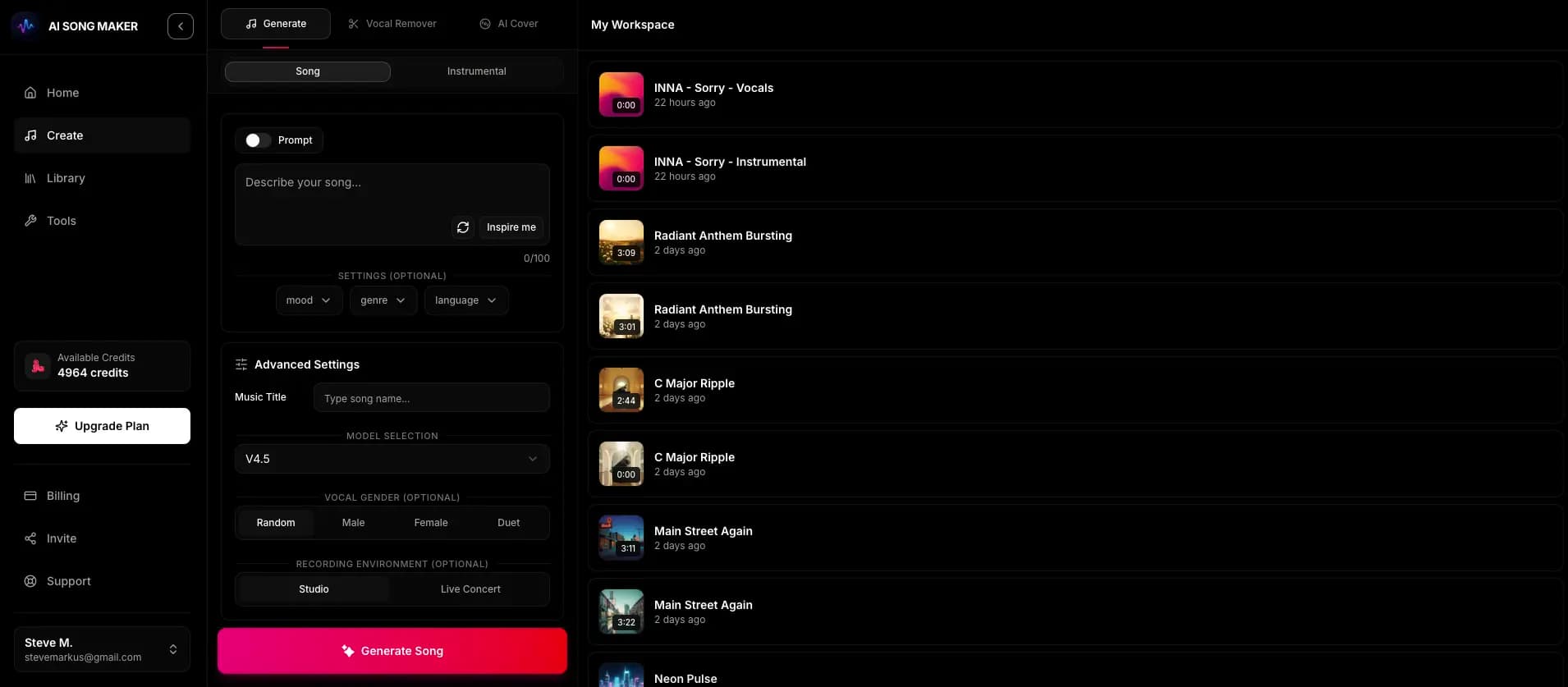
Background music works when viewers feel it more than they notice it. This workflow starts from the video, not from the music.
Before writing a prompt, watch the rough cut once. Note the overall pace, any big moments (a reveal, a punchline, a call to action) and whether someone speaks over most of it.
Write a prompt that names a genre, a mood, two or three instruments, a tempo feel and the kind of video, for example "calm acoustic instrumental, soft guitar and light piano, mid-tempo, steady energy, for a cooking tutorial with voice-over".
Lyrics compete with narration and on-screen text. For almost all background music, generate without vocals.
Each creation uses 2 credits and returns two versions, usually in a minute or two. Play each one under the video, not on its own, since the right track is the one that fits the edit.
If the music fights the voice, ask for "minimal" or "sparse" and fewer instruments. If the video feels flat, raise the energy word or add "gradual build".
With a paid plan, download the audio and place it in your editor. Trim to length, fade in and out, and lower the music under speech so every word is clear.
The music should move at the same speed as the edit. Use the cut rhythm of your video as the main clue for tempo and energy.
Ask for "driving", "upbeat" or "fast" with punchy drums. Electronic, pop and hip hop beats suit quick edits, travel reels and product highlights.
Ask for "mid-tempo", "steady energy" and "light percussion". The music should feel present but never pull focus from the speaker.
Ask for "slow", "spacious" and "gentle swell". Piano, strings, ambient pads and fingerpicked guitar suit landscapes, stories and memorial videos.
Ask for "builds gradually to a strong final section". You can then line up the peak of the music with your reveal or call to action in the editor.
Most problems with background music are really mix problems: the music occupies the same space as the voice.
Track length varies by generation, and you get a finished track rather than a seamless loop. These techniques cover most videos.
Pick the most fitting section of the track and trim to it. Add a short fade at each end so the music does not start or stop abruptly.
Ask for "steady groove, no dramatic ending" so sections repeat smoothly, then loop them in your editor with a short crossfade at the join.
Use two or three different tracks for distinct parts of the video and crossfade between them, rather than forcing one track to fit everything.
On Pro and Studio plans, Extend Audio continues one of your tracks from a second you choose, which helps when you need more of the same music.
The first moments decide whether people keep watching, so ask for music that is "catchy from the first bar" and skip long intros.
Viewers hear the music for a long time. Keep it subtle, avoid repetitive hooks and consider switching tracks between chapters.
Clean, neutral styles like light corporate pop, ambient electronic or soft acoustic keep attention on the product.
Ads are commercial use. Check the licensing section below and the plan you are on before running music in paid promotion.
Read the licensing terms before you publish commercially. Here is how it works on Music AI Generator.
Music chosen in isolation rarely fits. Create it after you have a rough cut so the pacing is clear.
If viewers have to strain to hear words, the music is too loud or too busy. Lower it and simplify the arrangement.
Two sets of words at once confuse viewers. Keep vocal tracks for sections with no speech, or skip them.
A single upbeat track across a video with serious and light moments can feel off. Match tracks to sections.
Use these with the instrumental switch on, then adjust the energy word to match your edit.
Light acoustic pop instrumental, friendly and focused, soft guitar, gentle piano and light shaker, mid-tempo, steady energy under a voice-over.
Upbeat tropical house instrumental, carefree and bright, marimba plucks, warm bass and crisp drums, fast, energetic from the first bar.
Minimal corporate electronic instrumental, modern and confident, soft synth plucks, subtle bass and light beat, mid-tempo, understated and steady.
Ambient cinematic instrumental, reflective and hopeful, sustained strings, soft piano and warm pads, slow, gentle swell toward the end.
Chill lo-fi hip hop instrumental, relaxed and warm, dusty drums, mellow electric piano and soft bass, laid-back groove, no dramatic ending.
Watch your edit first, then write a prompt with a genre, mood, two or three instruments, a tempo feel and the type of video. Turn on the instrumental switch, generate, and test both versions under the picture before choosing.
Ask for a minimal, sparse arrangement with few instruments and steady energy, avoid busy lead melodies, and lower the music under speech in your editor.
Track length varies by generation, so plan to trim, fade or loop the music in your editor. On Pro and Studio plans, Extend Audio can continue a track from a point you choose.
Pro and Studio subscribers can generate a song-specific, non-exclusive Content Usage License for eligible commercial projects, subject to its terms. Starter, Basic and free-credit use do not include it. See the licensing page before publishing.
There is no guarantee either way. The license is non-exclusive and similar music may be generated for other users, so keep a copy of your license for each track you use.
Describe your video's pace and mood, turn on the instrumental switch, and test two versions under your edit.
Try It Now